Price Signaling
Many wholesale companies regularly receive price and discount lists from their suppliers, on which their own pricing is based. Since these lists often contain large amounts of items and prices, these tables are quite complex to manage and you want to make certain that the "Sales prices" and "Sales discount lines" contain actual information when a "Sales Order" or "Sales Quote" is made.
If a "Sales Line" is entered that contains a price, based on an "old" "Sales Price" or "Sales Line Discount %", the value of the "Unit Price Excl. VAT" will be displayed in red. To use this signaling, navigate to "Price and Item Management Setup" to set a "Date Formula Price Alert".
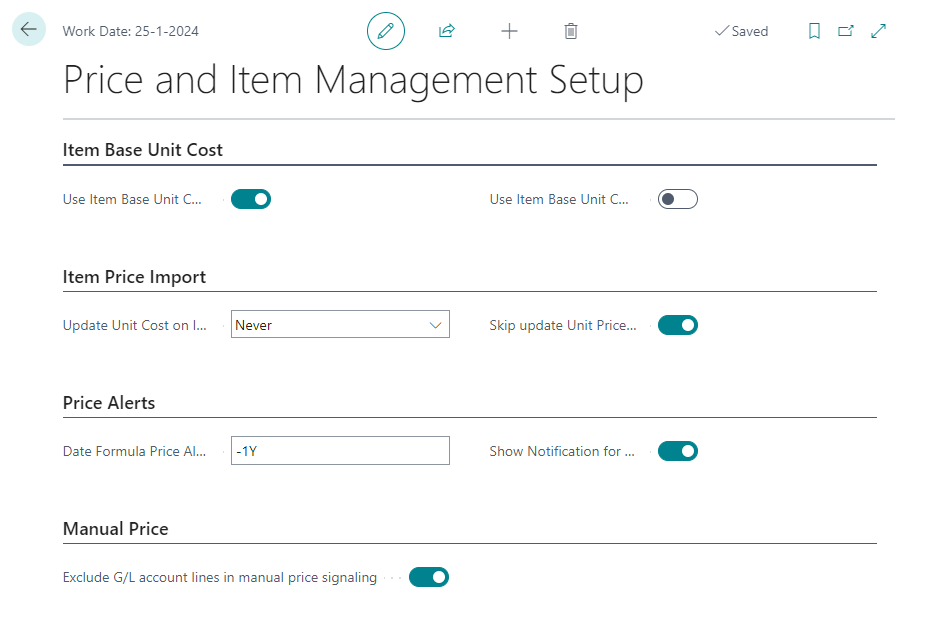
This "Date Formula" will calculate whether signaling should be applied. The calculation is based on the "Starting Date" of the "Sales Price" or "Sales Discount Line" for the particular Item (Group) and Customer (Group).
Consider the scenario below by Navigating to "Items" and selecting an Item, i.e., "1928-S" in example below and select "Prices & Discounts" and subsequently "Sales Prices":
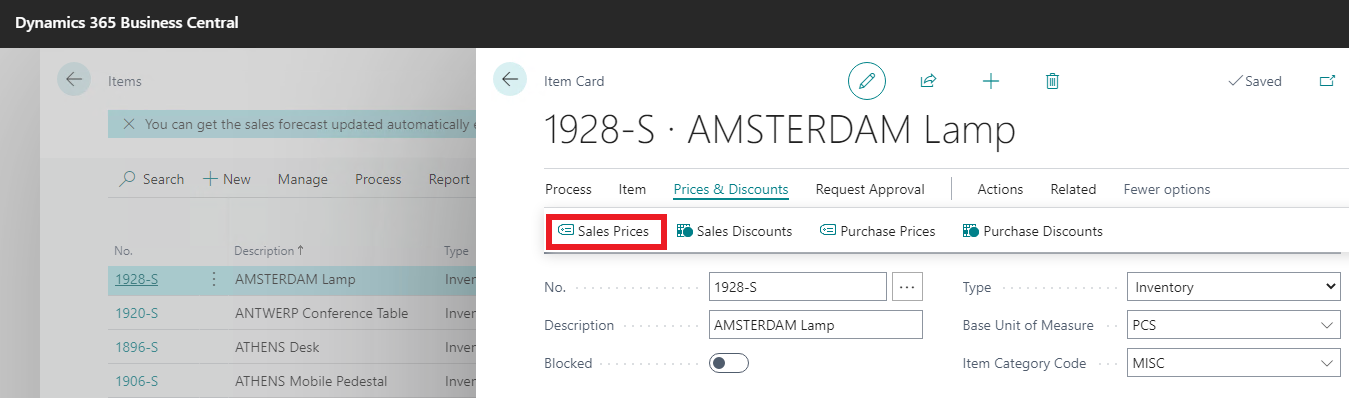
To create a new "Sales Price" for a Customer select "Sales Price Lists"
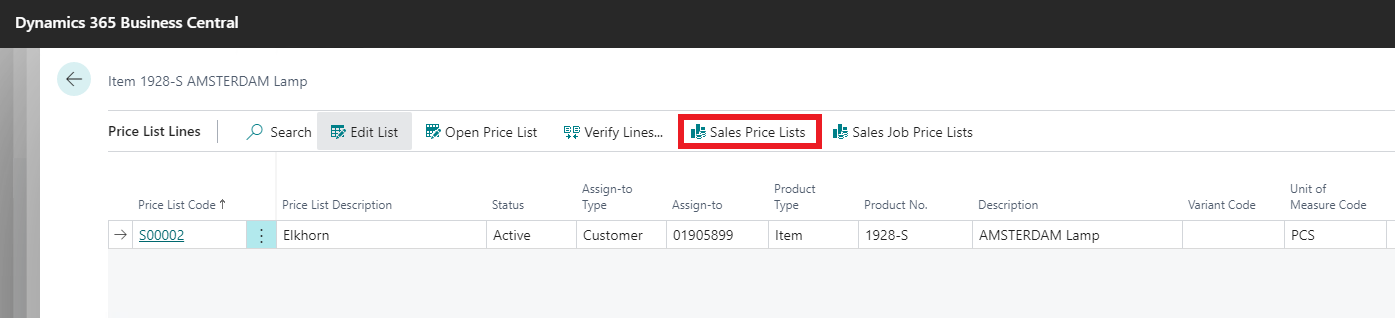
Create a "Sales Price List" for a Customer with a Starting Date in the past that is longer ago than the "Date Formula Price Alert" based on the "Working Date"
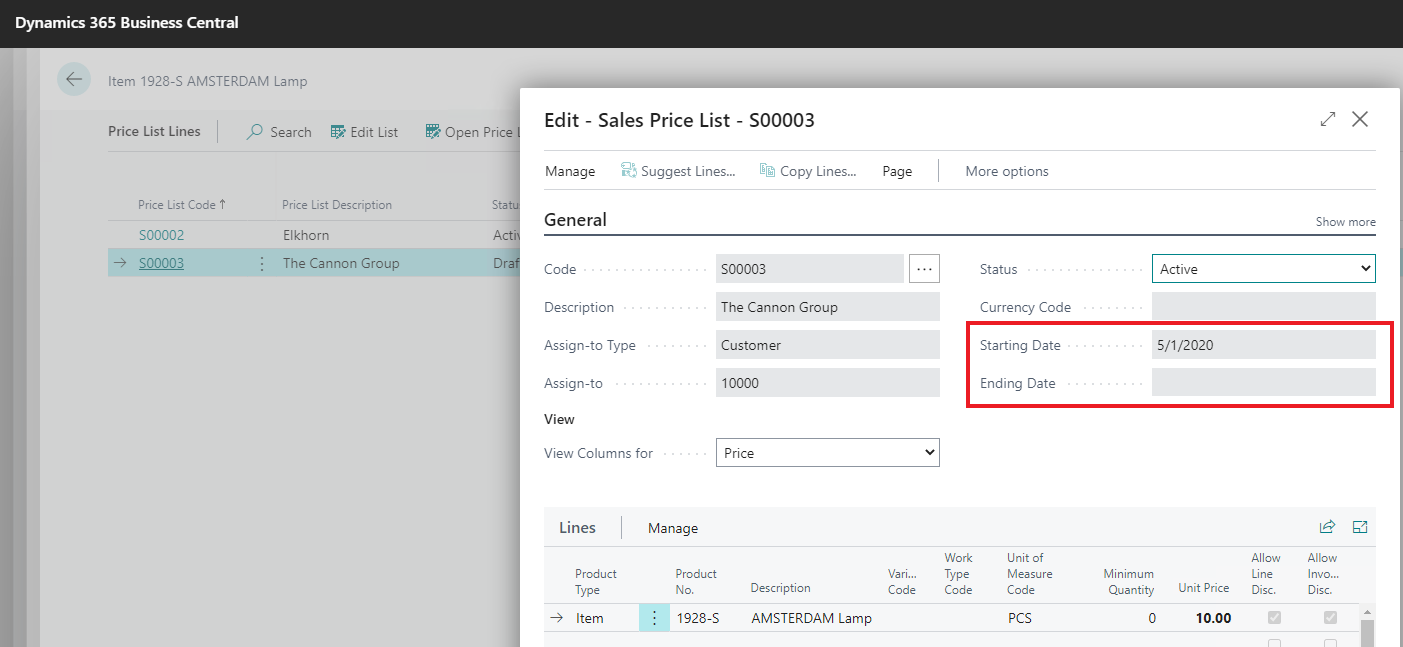
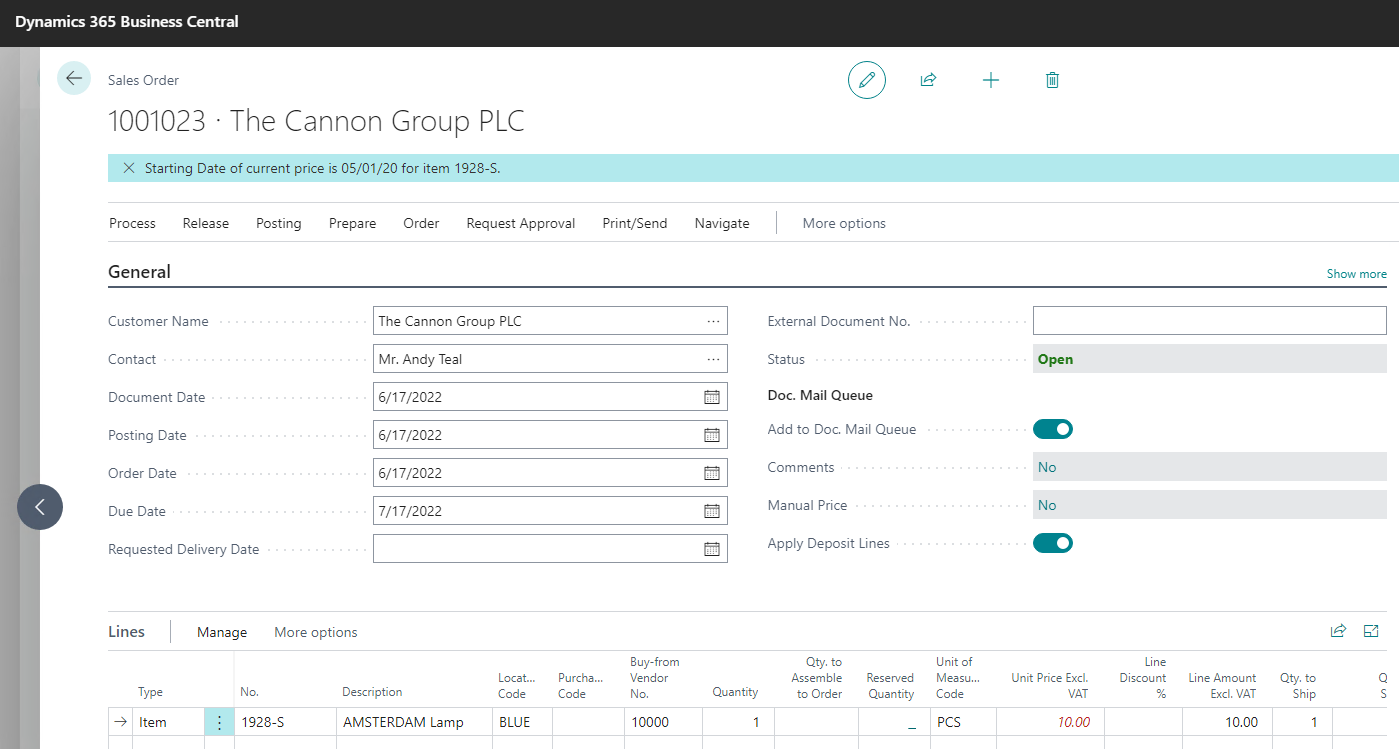
Create a "Sales Order" for this customer and a "Sales Line" with this "Item No." and for example an "Order date" of 6/17/2022, see picture below. The price in the field "Unit Price Excl. VAT" will be shown in red color as a signal that the "Sales Price" or "Sales Discount %" is overdue:
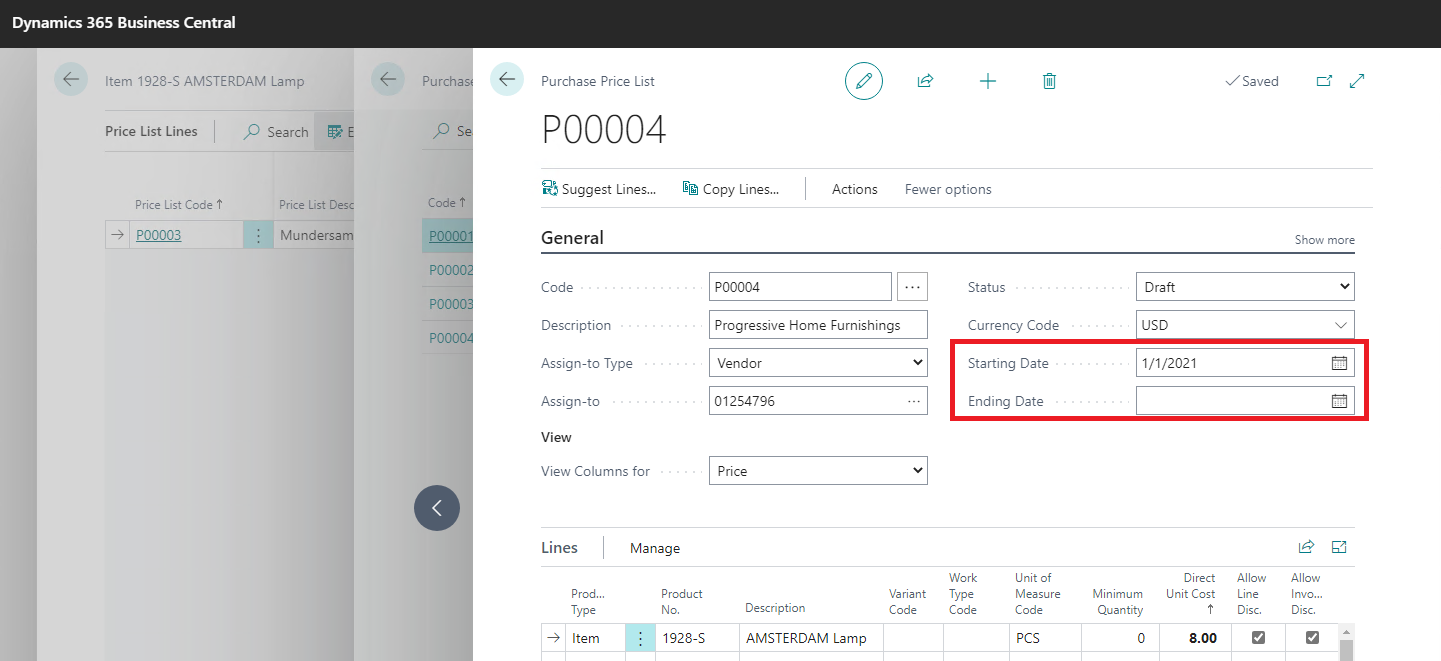
"Price signaling functionality" is also available for purchase prices and purchase discounts. It works similar as Sales Prices. In the example below, for Item "1928-S", we have selected "Prices & Discounts" and subsequently "Purchase Prices". We have created a new Purchase Price list for a specific Vendor with a Starting Date in the past that is longer ago than the "Date Formula Price Alert" based on the "Working Date".
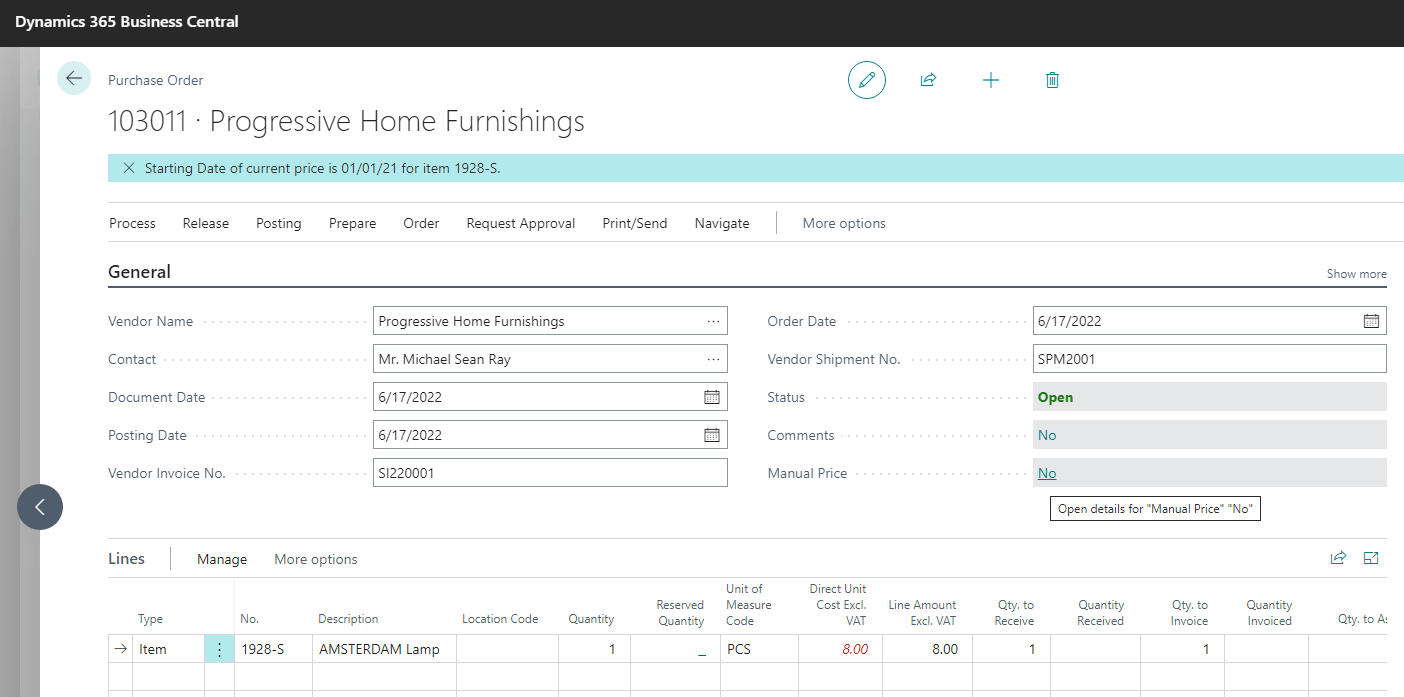
When create a "Purchase Order" for this vendor and a "Purchase Line" with this "Item No." and for example an "Order date" of 6/17/2021, see picture below. The price in the field "Direct Unit Cost Excl. VAT" will be shown in red color as a signal that the "Purchase Price" or "Purchase Discount %" is overdue:
Exclude Items from Manual Check
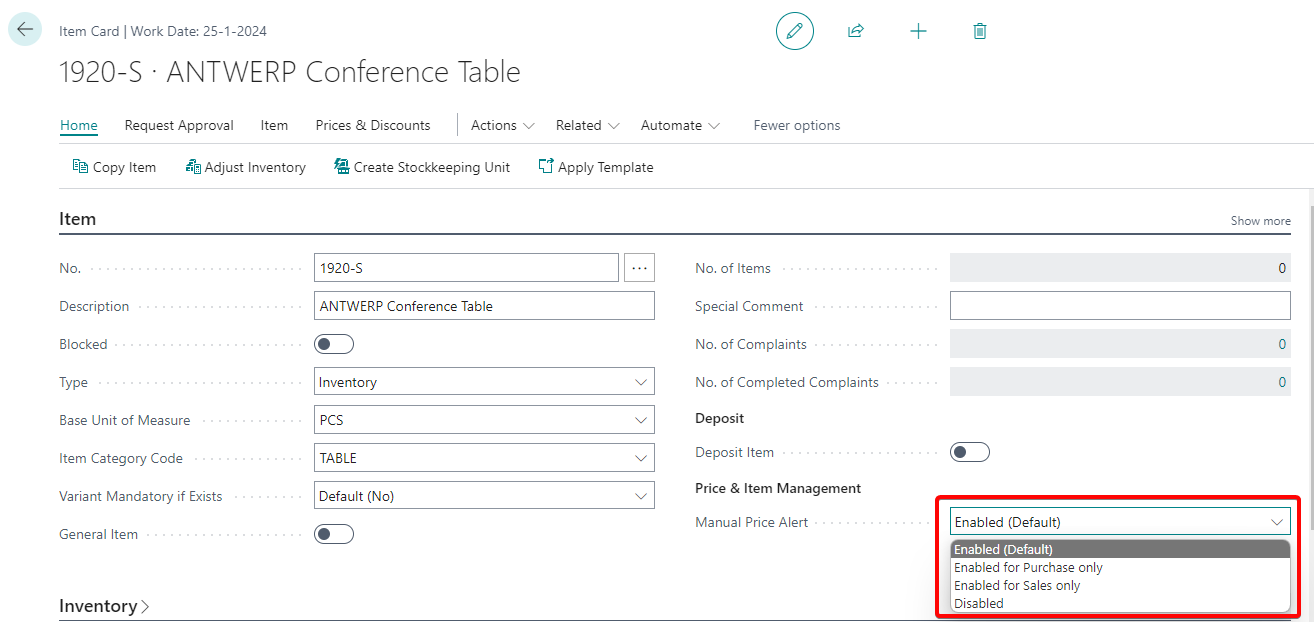
In some cases, it is convenient to turn off manual price check per item, for example shipping costs, when the prices are always different. Based on the settings below, you can set this up per item and exclude the item from price check. To include or exclude items from price alert, you can adjust the following settings:
Item Card > FastTab: Item > Price & Item Management
Manual Price Alert:
- Enabled (default)
- Enabled for Purchase only
- Enabled for Sales only
- Disabled